If you bought a Switch thinking it was the "safer" console, you weren't wrong about everything. But voice chat changed in 2025, and most parent guides on the internet are still describing a version of the Switch that doesn't exist anymore.
Here is what you actually need to know.
The original Switch handled voice chat through a clunky smartphone app, and it was so awkward most children ignored it. The Switch 2, which launched in June 2025, has native voice and video chat built right into the console. It is called GameChat. You press one button on the right Joy-Con and you are talking to friends. This is not the same thing your child had before. It needs a different setup, and the parental controls live in a different app screen.
If you have a Switch 2, jump to the GameChat sections. If you have a Switch 1, the smartphone-app section is yours. Most of you have both because your child's friends do, and that matters.
This guide takes about fifteen minutes to read and another ten to set up.
Switch 1 vs Switch 2: the quick comparison
| What you're comparing | Switch 1 (original) | Switch 2 (GameChat) |
|---|---|---|
| Voice chat method | Nintendo Switch Online smartphone app, per-game | Native GameChat on the console |
| Video chat | None | Yes, with USB camera (sold separately) |
| Setup tool | NSO mobile app + 3.5mm headset jack | Nintendo Switch Parental Controls app |
| Age gate | None on the chat itself | Under 16: parent approval required for friends |
| Friend approval | Friend list only | Per-friend GameChat approval, separate from friend list |
| Recording status | Not recorded by Nintendo | Last 3 minutes of recent sessions stored locally (deleted after 24 hours), sent to Nintendo only if reported |
| NSO membership required | Per game (Splatoon, MK, etc.) | Required since April 1, 2026 (the free Open-Access Period ended March 31, 2026) |
Source: Nintendo Support, GameChat Guide and FAQ (a_id/68390); Guide for Parents/Guardians (a_id/68384).
Switch 2 GameChat: what your child can actually do
GameChat is a Switch 2 feature that lets up to 12 friends talk together, with up to 4 of them on video at the same time. Your child can also share their gameplay screen so friends can watch what they are doing, and they can join "GameShare" sessions where friends play the same game together off one copy.
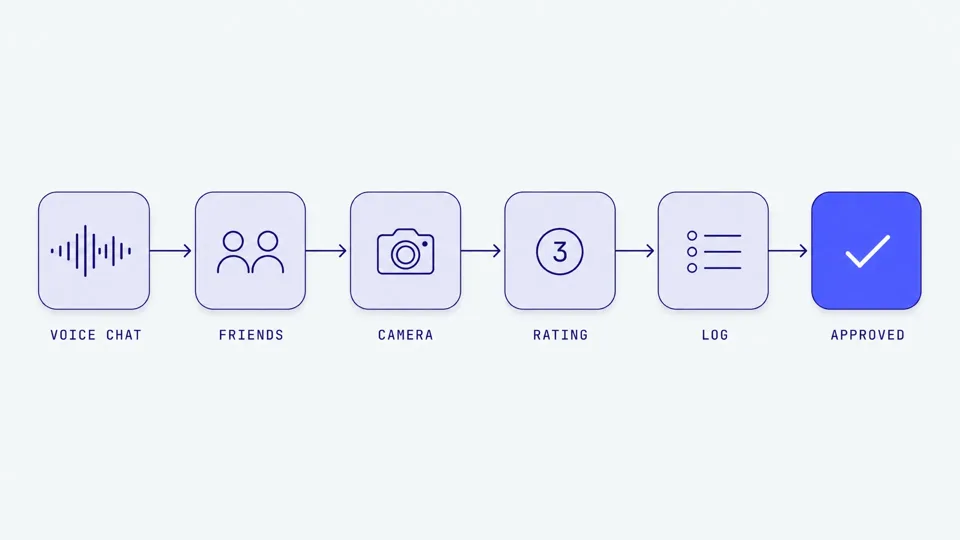
To use any of this they need:
- A Switch 2 console
- A Nintendo Switch Online membership (the free Open-Access Period ended March 31, 2026)
- A phone number registered to a Nintendo Account. For under-16 users, this is the parent's phone number on the parent's Nintendo Account.
- The Nintendo Switch Parental Controls smart device app, linked to the console
- For video chat, a compatible USB camera
The "C" button on the right Joy-Con 2 starts GameChat. There is no menu hunt. Your child will find it within ten minutes of using the console.
What the camera adds is a real shift. Voice chat that was previously hidden inside a headset is now a face on a TV. The Switch 2 Camera, sold separately, plugs into the USB-C port. If you do not buy one, video chat does not happen on your child's end. They can still be on calls with friends who do have cameras, but they will see those friends only if you allow it.
Screen sharing is the third surface. When your child is in a GameChat session, they can show what they are playing. This is mostly fine. The wrinkle is the age-rating cascade we will come back to in a minute.
The four layers of GameChat parental control
Nintendo built four separate controls. Most parent guides talk about one. You want all four.
Layer 1: friend approval
This is the layer that matters most. Even after your child adds a friend to their friend list, that friend cannot appear in GameChat until you approve them in the Parental Controls app.
How it works in practice: your child sends you a request. You see the requesting friend's username, account region, and the date of the request. You tap approve or deny. You can revoke an approval at any time. Under-16 users physically cannot start GameChat with un-approved friends.
This is the control that does the most actual work. The friend list itself is permissive (children add friends quickly and casually). The GameChat approval list is the one that decides who they can actually talk to.
The advice most guides skip: do this collaboratively. Sit with your child the first time. Approve the four or five real-life friends together. When a random username shows up later, the conversation is "we agreed how this works," not "I'm spying on you."
Layer 2: camera permission
Video chat is opt-in per session. If a camera is plugged in and you have not enabled video chat for your child, the child sends a permission request each time they want to turn the camera on. You can approve, deny, or disable cameras entirely.
If you do enable it, there is one more setting most parents miss: field of view. Three options:
- Face only. The camera crops tightly to the face.
- Person only. Head and shoulders.
- Full video. The whole room.
For younger children, "face only" is the safer default. It is harder to accidentally show what is on a desk, a bed, or a wall in the background. Other users' camera feeds are still subject to your child's permission setting on your end. If you disable video chat for your child, friends' faces will not appear either.
Layer 3: software age rating cascade
This is the sneaky one. The software age-rating ceiling you set for your child's account does not only restrict which games they can play. It also restricts what they can see in GameChat.
If a friend is sharing their screen and they are playing a game that is above your child's age-rating ceiling, the friend's screen will not be shown on your child's console. Same logic for GameShare: your child cannot join a GameShare session for a game that would be blocked by the rating cap.
In practice this means the rating ceiling does the work of "what mature content do other players bring into the room," not just "what does my own child install."
Layer 4: daily tracking and monthly summary
The Parental Controls app keeps a log. You see:
- Whether GameChat was used that day, what time, and how long
- Whether the camera was used
- Whether GameShare was used
- Which friends your child interacted with, including which ones it was the first time they had used GameChat with
You do not see what was said. Nintendo is explicit about this. The conversation contents are not available to you. The tracking is presence-based, not content-based.
This is fine for most cases. It tells you "is GameChat being used at all," and "is my child talking to the same five people, or did somebody new show up this week." That is enough signal for most parents to start a conversation if they want to.
What Nintendo records (and what they don't)
The Switch 2 launched in June 2025 with a privacy policy update that ran in the press as "Nintendo records GameChat." That is technically correct, and most of the panic around it was incorrect. Here is what is actually happening.
The Switch 2 stores, locally on the console, the last three minutes of recent GameChat sessions (stored locally, deleted after 24 hours). This rolling buffer exists so that if somebody (your child, the other player, anybody in the chat) reports a violation, the reporter can review and flag the moment that needs review.
Three constraints make this less surveillance-flavored than it sounds:
- Local first. The audio and video sit on the Switch 2 itself. It does not get uploaded to Nintendo automatically.
- 24-hour window. Recordings are available "only if the report is submitted within 24 hours," per the GameChat Terms. After 24 hours, the local buffer is overwritten.
- Reports trigger uploads. Nintendo only sees the recording if a user files a report. Then a clip from the last three minutes of a recent session can be sent to Nintendo for moderation review. If a report leads to a legal request, that recording "may be disclosed to third parties, such as authorities, courts, lawyers."
Source: Ars Technica, Nintendo warns Switch 2 GameChat users: "Your chat is recorded", June 5, 2025.
Before your child uses GameChat for the first time, the console shows the GameChat Terms and asks for consent. If you decline, GameChat does not run. There is no opt-out version where chat is unrecorded.
The honest read: this is moderation-style recording, not blanket capture. It is similar to what most platforms do with moderation queues. The reason to care is that "voice chat is unrecorded" is no longer true for any child using a Switch 2. If on-device privacy matters to you specifically, this is information to factor in.
The Fortnite trap and how to fix it safely
The most common parent search around Switch and voice is some version of this:
"I set up parental controls on my Switch and now my kid can't talk on Fortnite. How do I fix it?"
The pattern is consistent enough to be the second-most-common Switch parental controls help thread on Reddit and the Nintendo Life forum. Here is what is actually happening and how to fix it without losing the protection.
Fortnite voice chat on Switch is in-game voice, not GameChat. (GameChat is a Nintendo system feature; Fortnite voice is an Epic Games feature inside Fortnite.) The Switch console has a setting called "Communication with Others" with three options: Not Restricted, Restricted, or off. When this is set to Restricted at the console level, Fortnite cannot let your child use voice chat, even with their actual friends.
The Switch console setting wins. There is no "exception for Fortnite friends" override at the console layer.
The fix is one of two approaches.
Approach A: Use Epic Account parental controls instead. Set the Switch's "Communication with Others" to Not Restricted. Then set up Epic Games parental controls through the Epic Account Portal. Epic's settings can restrict voice and text chat to "friends only," which is roughly what most parents actually wanted in the first place. The Epic Account is also where you cap who appears in their friends list inside Fortnite. Source: Nintendo Support, Parental Controls for Epic Games Software on Nintendo Switch 2 and Nintendo Switch (a_id/64137).
Approach B: Keep Switch restrictions on but allowlist Fortnite carefully. Use the "Allow List" in the Nintendo Switch Parental Controls app to mark Fortnite specifically as allowed to use voice. The same support page documents this flow. It is fiddlier than Approach A and most parents end up with Approach A anyway.
The reason Approach A is usually right: Switch communication restrictions are blunt. They block everything. Epic's controls are granular and follow the Epic Account, so they also protect your child when Fortnite is played on PC or PlayStation or any other platform. Most children who play Fortnite on Switch also play it somewhere else.
Switch 1 voice chat: the smartphone-app oddity
If your child is on the original Switch, none of the GameChat stuff above applies. Switch 1 does not get GameChat. It never will.
The Switch 1 has voice chat through three different mechanisms, depending on the game:
- The Nintendo Switch Online smartphone app. For Nintendo's first-party online games (Splatoon, Mario Kart, Mario Tennis Aces), voice chat runs through the phone. You launch the app, your child joins a game lobby, and the phone routes the voice. It is awkward and most children do not bother. Source: Nintendo Support, How to Voice Chat Using the Nintendo Switch App (a_id/41223).
- In-game voice for cross-platform games. Fortnite, Rocket League, and similar titles use the console's 3.5mm headset jack and route voice through the game itself, not through Nintendo's system. This is where the Fortnite trap above applies.
- No voice at all. Most Switch 1 single-player or local-multiplayer games do not have voice chat. This covers a lot of younger children' usage.
The Switch 1 controls live in the same Parental Controls app as the Switch 2. The relevant setting is "Communication with Others," which works the same way described above. If your child is on Switch 1 and plays Fortnite, follow the Epic Account approach in the section above.
The Switch 1 also has a friend list with no separate per-friend chat approval, because there is no GameChat for the parent to gate. The friend list is the only layer at the console level. For game-specific voice chat, the game's own settings apply (Fortnite, Roblox via the screen, etc.).
Setting it up: a 10-minute walkthrough
For Switch 2, in this order:
- Download the Nintendo Switch Parental Controls app. Free, in both app stores. iOS and Android.
- Link the app to your child's Switch 2. Go to System Settings → Parental Controls on the console, choose "Use this Console with the App," and scan the QR code. The app gives you a registration code that you enter on the console.
- Set the restriction level. Pick from the presets (Teen, Pre-Teen, Child) or go custom. The presets set age rating ceiling, in-game communication, and screenshot/video sharing. Custom lets you mix.
- Add your phone number to your Nintendo Account. Required for GameChat for under-16 users. The console will prompt this at first GameChat use anyway.
- Enable GameChat. In the Parental Controls app, find the supervised user's settings, tap GameChat, and toggle it on for the user. This does not yet approve any friends.
- Approve friends together. Sit with your child. They send friend approval requests through the console's GameChat interface; you approve in the app. Walk through every friend on the list. If a username does not match a real-life person, ask why.
- Set the camera permission. Disable it if you do not want video chat at all. Otherwise, leave it as "per-session request" and set the field of view to face-only for younger children.
- Set the software age rating ceiling. This is the layer most parents set last. Use the age your child is, or one year above if their friends play things slightly older than them. Remember that this also gates what friends can show in screen-sharing.
For Switch 1, skip the GameChat steps. The Parental Controls app linking and restriction-level setting both work the same way. The "Communication with Others" setting is your main lever for voice in cross-platform games. Per-game voice through the NSO smartphone app is enabled or disabled by the game itself.
The whole flow takes about ten minutes if your Nintendo Account is already set up. The first-time setup is usually longer because of the phone number verification.
What the Parental Controls app actually shows you
After it is set up, this is the daily check that takes thirty seconds.
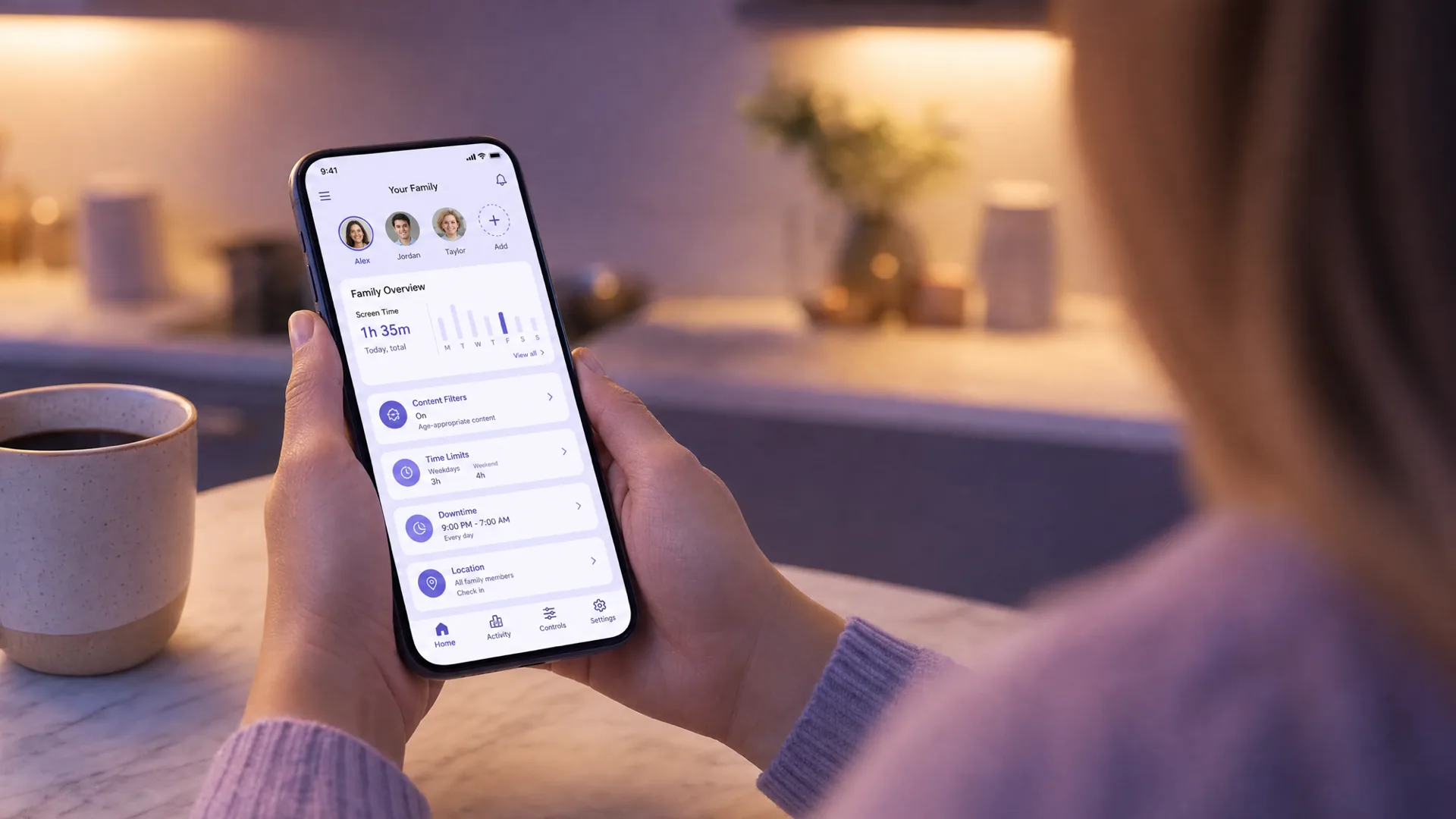
The app opens to a today view. You see:
- Total play time today across the supervised user's console
- Which games were played and for how long
- Whether GameChat was used and how long
- Whether the camera was used
- Whether GameShare was used
- A list of friends the child interacted with through GameChat, with first-time interactions called out
The monthly summary rolls all of this up. You can see, for example, that your child played 14 hours this month, used GameChat with three different friends, two of whom were first-time GameChat partners.
This is the right level of visibility for most parents. It is not a transcript. You are not reading what they said. You are getting a presence signal: "is this new, has something changed, should I ask my child about it." That is the conversation-starting layer, not the surveillance layer.
Frequently asked questions
Does Nintendo Switch have voice chat?
Yes, both consoles do, but in completely different ways. The Switch 2 has native voice and video chat through GameChat, launched June 2025 and built into the console. The Switch 1 uses the Nintendo Switch Online smartphone app for some first-party games (Splatoon, Mario Kart) and routes voice through the game itself for cross-platform titles like Fortnite. The Switch 2 voice experience is much closer to what voice chat looks like on PlayStation or Xbox.
What age can kids use GameChat on Switch 2?
There is no hard age block, but under-16 users require parent setup through the Nintendo Switch Parental Controls app, with the parent's phone number registered to the parent's Nintendo Account. Under-16 users also cannot use GameChat with any friend who has not been approved by the parent through the app. The default position is that GameChat will not run for a child user until a parent has actively set it up.
Can Nintendo see what my kid says on GameChat?
Only if somebody in the chat reports a violation. The Switch 2 stores the last three minutes of recent GameChat sessions locally on the console. Recordings are deleted after 24 hours. If a user reports the chat to Nintendo, they can submit one of those clips for review. Without a report, the audio never leaves the console. The full Ars Technica explainer from June 2025 is worth reading if this matters to you.
Why doesn't Fortnite voice chat work after I set Switch parental controls?
Because the Switch's "Communication with Others = Restricted" setting blocks voice chat in every game, including Fortnite with the child's actual friends. The fix is to set Communication with Others to Not Restricted at the console level, then use Epic Games parental controls through the Epic Account Portal to lock Fortnite voice to friends only. This is granular where the Switch setting is blunt.
Does Switch voice chat work with Discord?
No. The Switch (either version) cannot run Discord directly. Discord voice chat happens on a separate device, usually a phone or laptop. Many older children will use Discord on their phone while playing Switch games, which is one reason most parental safety apps target the phone, not the console. The Switch is one surface in a multi-device gaming pattern.
Is Switch 2 voice chat different from Switch 1?
Completely different. Switch 2 has GameChat, a native voice and video chat feature that runs on the console, requires Nintendo Switch Online, and has its own parental control layer (friend approval, camera permission, age rating cascade). Switch 1 routes voice through the NSO smartphone app for first-party games and through the game itself for cross-platform games. They are not the same product from a parenting perspective.
Can I see who my kid talked to on Switch?
On Switch 2 with GameChat, yes. The Parental Controls app shows you a daily list of friends your child used GameChat with, including first-time interactions. You do not see conversation content. On Switch 1, you can see the friend list and approve or remove friends, but per-game voice activity is not tracked by Nintendo's app.
A note for Australian parents
The eSafety Commissioner publishes its own Nintendo Switch guide at esafety.gov.au/key-topics/esafety-guide/nintendo-switch, with AU-specific reporting routes if something goes wrong. Worth bookmarking. Also relevant: the Roblox AVO 2026 changes affecting under-13 voice chat in Australia apply to Roblox, not Switch directly, but most Switch children also play Roblox on phone or PC, so the cross-platform reality below applies.
Your child plays more than Switch
Here is the honest part most Switch parental control guides skip.
The Switch is one surface. A typical eight-to-sixteen-year-old gamer is on Switch, plus Roblox on a phone or PC, plus Fortnite on whatever device is closest, plus Discord on their phone for the friends they actually talk to most often. The Switch parental controls do excellent work for Switch. They do nothing for the other four hours of voice chat that happen on the phone.
There is no third-party safety app that runs on a Switch. The platform is closed. Bark, Aura, Qustodio, none of them reach Switch. Nintendo's own Parental Controls app is the only tool, and for the Switch itself it is genuinely good.
For the rest of the cluster (the phone, the laptop, the PC), there is a separate question. We make a voice chat safety app called Halo that runs on iOS, Mac, and Windows, with Android in development. On iPhone and iPad it covers voice and text chat in the game on screen; on Mac and Windows it covers Discord and other voice chat on that computer. Halo runs on-device and alerts you only when it detects a genuine danger pattern — grooming, bullying, or self-harm cues — not general chat or swearing. Audio is processed on-device and never uploaded or stored; only the resulting alert is sent to you. If the privacy angle in the GameChat section above matters to you, that contrast may matter to you too.
If you want to read more on the platforms your child plays beyond Switch:
- Voice chat safety across platforms (the full pillar)
- Roblox voice chat safety
- Fortnite voice chat safety
- Discord parental controls
- Minecraft voice chat safety
What to do this week
For the Switch in your house: download the Parental Controls app, link it to the console, and set up the four GameChat layers. Sit with your child the first time. Approve their five closest friends together. Total time: about ten minutes.
For the rest of their gaming: take the same ten minutes for whichever other platform they spend the most time on. The Switch is rarely the riskiest device. It is the one with the best built-in controls, and the one parents look at first because it feels the most "child-friendly." That is half-right. The other half lives on the phone.
Nintendo Switch voice chat parental controls do real work when they are set up. The trick is remembering to use them, and remembering that the Switch is one device in a household with several.