Quick answer: Add your child to your PlayStation family, then go to Settings, Family and Parental Controls, Family Management, and pick your child. Set Communication and User-Generated Content to Restrict for voice and chat, set an age level for games, set a monthly spending limit, and add playtime limits. You can do all of it from the free PlayStation App on your phone.
The PS5 has genuinely good parental controls once you know where they live. The problem is they're spread across a few different menus, and the most important one, the communication setting, is buried under a name that doesn't obviously mean "voice chat." So a lot of parents set a playtime limit, feel done, and never touch the setting that actually decides who can talk to their child.
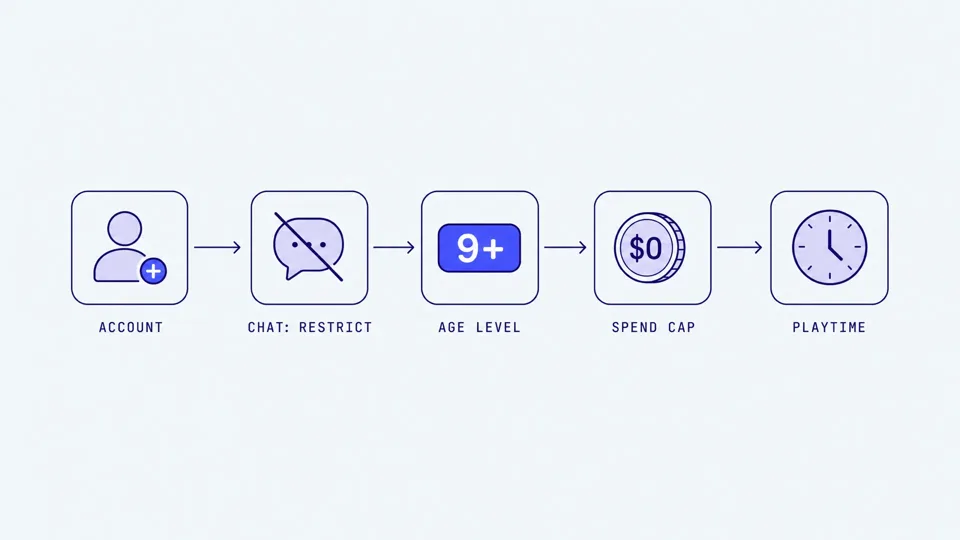
This guide walks through the whole thing in order: creating the child account, locking down voice and party chat, setting an age level for games, capping PlayStation Store spending, and adding playtime limits. It also covers a cross-play gotcha most guides skip, and one honest limitation of console controls that no app can fix.
Do this first: 5-minute PS5 safety checklist
Make sure your child is on a child account, not sharing yours. Controls only work on an account you manage as family manager.
Open the PlayStation App on your phone (or go to the console), and find your child under Family Management.
Set Communication and User-Generated Content to Restrict. This is the voice and chat switch.
Set an Age Level for Games and Apps that matches your child's age.
Check the Monthly Spending Limit (it defaults to 0) and set a playtime schedule if you want one.
That covers the essentials. The rest of this guide explains what each setting really does, where it falls short, and how to handle games that carry their own chat controls.
Step 1: create a child account (this unlocks everything)
None of the parental controls do anything until your child is on their own child account inside your PlayStation family. If your child has been playing on your account, or on an adult account they set up with a fake birthday, the controls have nothing to attach to. This is the step people skip, and it quietly undoes all the others.
You become the family manager, and each child is a family member linked to you. A child account can't be converted to an adult account until your child reaches the age of digital majority in your country, so their birthday matters. Set it honestly.
To create one, sign in as the family manager, then go to Settings, Users and Accounts, Family and Parental Controls, Family Management, and choose Add Family Member, Create User. You can also do the whole setup from the PlayStation App (free on iOS and Android), which is honestly the easier path for most parents. Sony launched a dedicated PlayStation Family App in September 2025 that puts all of this in one place on your phone.
Step 2: restrict voice and party chat
Here's the setting that matters most and hides the best. On the PS5 it's not called "voice chat." It's called Communication and User-Generated Content.
Go to Settings, Family and Parental Controls, Family Management, pick your child, then Parental Controls, then Communication and User-Generated Content. You get two options: Allowed or Restrict.
Setting it to Restrict turns off:
Text and voice messaging with other players
Party chat (voice and text)
Creating, viewing, and sharing user-generated content like screenshots, clips, and broadcasts
Linking third-party communication apps to the account
Pre-written in-game messages stay allowed even when restricted, which is fine, since those are canned phrases rather than open chat. One thing to flag: unlike some platforms, the PS5's console-level control here is essentially on or off. There's no "friends only" middle setting at the console level for party chat the way Roblox or Xbox offer. If you want your teen to talk to their actual friends but not strangers, that nuance lives inside individual games, which brings us to the cross-play issue below.
Step 3: the cross-play catch most guides miss
Restricting communication at the PlayStation level blocks PSN parties and PSN messages. It does not automatically silence chat that runs inside a game.
Cross-play titles are the tricky ones. When your child plays Fortnite, Roblox, Call of Duty, or Minecraft with players on Xbox, PC, or mobile, the voice and text often route through the game's own servers, not PlayStation's. That means the game carries its own chat settings, and those settings sit on top of whatever you did on the console.
So a PS5 set to Restrict can still put your child in a public Fortnite voice lobby if the game's own voice is on and its account isn't locked down. You have to check both. Our guides on Fortnite voice chat safety and Roblox voice chat safety cover those in-game settings step by step. The short version: set the console, then open each big game your child plays and check its voice and text options too.
Step 4: set an age level for games and apps
This one blocks games your child is too young for from launching at all. Go to Parental Controls, Age Level for Games and Apps. Enter your child's age or pick a restriction band, and the PS5 will block any game rated above that level.
It uses the rating board for your region: ESRB in the US (E, E10+, T, M), PEGI in Europe, the Australian Classification Board (G/PG/M/MA15+/R18+) in Australia, and the equivalent board elsewhere. Set the age to 9, for example, and the console blocks anything rated above E for Everyone. You can set separate levels for PS5 games, PS4 games, and Blu-ray or DVD discs, plus a control for PlayStation VR2 use.
A rating covers content like violence and language, but it says nothing about who your child talks to. A game can be rated E and still have open voice chat with strangers. Age level and communication are two separate jobs, so set both.
Step 5: cap PlayStation Store spending
Good news here: a child account's Monthly Spending Limit defaults to 0, so your child can't buy anything until you deliberately allow it. This is the opposite of the surprise-charge horror stories you hear about other platforms.
If you want them to be able to buy the occasional game or add-on, go to Family Management, pick your child, then Parental Controls, Monthly Spending Limit, and set an amount. If you'd rather keep tight control, leave it at 0 and add funds to their wallet manually for specific purchases. Either way, keep an eye on wallet top-ups, since gifted funds can sidestep the limit.
Step 6: add playtime limits
Playtime lives under Playtime Settings for each child. You can set different limits for each day of the week, choose whether the console warns them or logs them out when time's up, and set a daily play window. From the phone app, your child can send a request for more time, and you approve or decline it on the spot.
Worth being honest about what playtime does and doesn't solve. It manages how long your child plays. It does nothing about who talks to them or what gets said. Those are separate problems, and I mention it because a lot of parents set a time limit, feel covered, and stop there. Our screen time and gaming safety guide goes deeper on the balance between limits and trust.
Age-specific recommendations
Under 10
Communication: Restrict (no open voice or messaging)
Age level: set to their real age, which blocks T and M-rated games
Spending: leave at 0
Playtime: set a clear daily window
Play in a shared space where you can hear what's happening
Ages 10 to 12
Communication: Restrict at the console. If you allow some chat inside specific games, lock those games to friends only in their own settings.
Age level: E10+ or T depending on the child, reviewed per game
Watch cross-play titles closely, since this is where strangers get in
Key risk: being lured off PlayStation to Discord or Snapchat where there's no oversight
Ages 13 and older
Communication: you may set it to Allowed if you trust them, but talk through public lobbies first
Age level: T, moving toward their real age as they mature
Have the real conversation (scripts below) rather than relying only on switches
Key risk: adults in public cross-play voice, and pressure to move private
What PS5 controls can't do (the honest limit)
Here's the thing no settings menu will tell you. PS5 parental controls choose who is allowed to talk to your child. On, off, friends, blocked. They don't record, transcribe, or flag what actually gets said. Sony doesn't keep a voice history, so there's nothing for you to review after the fact.
And no third-party monitoring tool reads console voice, either. The audio is processed on the PlayStation and mixed with other players over the network, so it never lands on a device an app can listen to. This is a genuine blind spot across all consoles, PS5, Xbox, and Switch alike. If you want the full picture of what console controls can and can't see, our voice chat safety guide lays it out, and the platform-specific breakdowns for Xbox voice chat parental controls and Nintendo Switch voice chat parental controls show the same pattern on those systems. The same PS5 and Xbox steps apply to the big cross-play titles parents ask about most.
This matters because contact risk is real. The NCMEC CyberTipline received 21.3 million reports of suspected child sexual exploitation in 2025, with 1.4 million online enticement reports, up 158% from the year before. Thorn's 2024 Youth Perspectives study found that one in three boys aged 9 to 12 reported an online sexual interaction. Voice chat with strangers is one of the channels those interactions travel through, and it's the one you can't read back.
Where a monitoring tool fits (and where it doesn't)
So which controls do what? Here's an honest comparison, including where Halo (the app I work on) fits and where it plainly doesn't.
Tool | What it does on PlayStation | Platform | Limitation |
|---|---|---|---|
PS5 parental controls | Restrict or allow voice, chat, spending, playtime; set game age level | PS5 / PS4 | Blocks or allows only. No record of what's said. No friends-only party setting at console level. |
PlayStation App | Same controls, remotely from your phone; approve playtime and game requests | iOS, Android | Management only, not monitoring of chat content |
Bark / Qustodio | Nothing on console voice; can filter web and apps on a linked phone | Phone / tablet | No console voice access at all |
Halo | Alerts you only when it detects genuine danger in voice or text chat, grooming, bullying, or self-harm cues, processed on the child's own device | iOS, Mac, Windows | Cannot read console voice (PS5, Xbox, Switch). No Android yet. Their voice never leaves their device. Only the words are analysed, then discarded. Never stored. You get a summary, not a recording. |
To be straight about it: if your child plays on a PS5, no tool including Halo can read their console voice chat. That audio never leaves the PlayStation. What Halo does cover is the chat on the devices where it can actually reach it: voice and text chat in games like Roblox on iPhone and iPad, and Discord or other VoIP voice running on a Mac or Windows PC. It sends you an alert when it detects grooming, bullying, or threats, not a transcript of everything said, and not swearing. Their voice never leaves their device. Only the words are analysed, then discarded. Never stored. You get a summary, not a recording. For a console-first household, the honest answer is that the PS5's own controls plus a real conversation are your main tools, and a danger-alert layer helps only when your child also plays on a phone or computer.
What to say to your child about PlayStation chat
Ages 8 to 10
"On the PlayStation you'll mostly play with friends we know. If a stranger starts talking to you in a game, you can just leave, and you can tell me."
"If anyone asks you to chat somewhere else, like on another app, that's always something to tell me about."
"You won't be in trouble for telling me. That's the deal."
Ages 11 to 13
"In cross-play games, the people talking might be on Xbox or a PC, and some of them are adults. It's hard to tell who's who by voice."
"If someone you met in a game wants to move to Discord or Snap, ask yourself why. That's usually a red flag."
"Has anyone ever offered you skins, V-Bucks, or gifts? Tell me if they do."
Ages 14+
"Public voice lobbies mean anyone can be in the call, including grown adults. I'm not banning it, I just want you to clock who's around."
"If someone gets personal fast, asks where you live or what school you go to, or pushes to talk privately, that's a pattern worth knowing."
"If something feels off, I'd rather hear it from you than find out later. No lectures."
Frequently asked questions
How do I set up parental controls on a PS5?
Create a family and add your child as a member first, then go to Settings, Family and Parental Controls, Family Management, and pick your child. From there you set communication restrictions, an age level for games, a monthly spending limit, and playtime. You can do the same thing from the free PlayStation App on your phone without touching the console.
How do I restrict voice chat on a PS5 child account?
Open your child's account under Family Management, go to Parental Controls, then Communication and User-Generated Content, and set it to Restrict. That blocks text and voice messaging with other players, party chat, sharing user content, and linking third-party chat apps. Pre-written in-game messages stay allowed. There's no Friends Only middle ground here, so it's on or off.
Can I set a PS5 age limit for games?
Yes. Under your child's account, go to Parental Controls, then Age Level for Games and Apps. Enter your child's age or pick a restriction band, and the PS5 blocks any game rated above that level from launching. It uses ESRB ratings in the US and the equivalent board in your region. You can set separate levels for PS5 games, PS4 games, and discs.
Do PS5 parental controls block cross-play chat in games like Fortnite?
Setting communication to Restrict blocks PlayStation-level party and message chat. But games with their own chat systems, like Fortnite or Roblox, also carry their own settings, and cross-play voice can route through the game rather than PSN. Check the in-game voice and text settings too, not just the console.
Can PS5 parental controls tell me what my kid is actually saying in voice chat?
No. PS5 controls decide who is allowed to talk to your child, on or off, friends or blocked. They don't record, transcribe, or flag what gets said, and Sony doesn't give parents a chat history. No third-party monitoring tool reads console voice either, because the audio never leaves the PlayStation. That's a real gap worth knowing about.
How do I set a spending limit on the PlayStation Store for my child?
A child account's monthly spending limit defaults to 0, so they can't buy anything until you change it. Go to Family Management, pick your child, then Parental Controls, then Monthly Spending Limit, and set the amount. You can also just leave it at 0 and add funds manually for specific purchases.
Sources
[PlayStation] "How to set parental controls on PlayStation consoles." playstation.com/support
[PlayStation Blog] "Announcing PlayStation Family App for parental controls and family management." September 2025. blog.playstation.com
[ESRB] "PlayStation 5 Parental Controls." esrb.org/tools-for-parents
[Internet Matters] "PlayStation 5 (PS5) parental controls." internetmatters.org
[NCMEC] "CyberTipline 2025 Report." missingkids.org
[Thorn] "2024 Youth Perspectives on Online Safety." thorn.org
This guide is updated as PlayStation changes its family and safety features. Last reviewed September 2026.