If you set up Xbox voice chat parental controls once and assumed you were done, this guide is going to be uncomfortable for about four minutes. Then it gets easier.
Here is the thing most guides skip. Voice chat on an Xbox does not run through one system. It runs through two. There is the Xbox layer, which is Microsoft's own communication setting for your child's account. And there is the game layer, which is Fortnite's controls, or Call of Duty's, or Minecraft's, each with its own account and its own switches. You can lock the Xbox layer down perfectly and your child can still be in an open voice channel with strangers, because the game never asked Xbox for permission.
The good news: both layers are free to change, the settings are the same on Xbox One and Xbox Series X and Series S, and the whole job takes about fifteen minutes once you know what you are looking at.
This guide covers all of it. The two tools Microsoft gives you, the communication settings that actually matter, the crossplay gap, and an honest answer to the question parents really want answered, which is whether you can hear what your child is saying. (You cannot. We will get to that.)
The three places Xbox voice chat happens
| Voice surface | What it is | Who controls it | Where you set it |
|---|---|---|---|
| Xbox party chat | A voice channel your child joins with people on Xbox, across any games | Xbox account communication setting | Xbox Family Settings app or console |
| In-game voice on Xbox network | Team or proximity voice inside a game, with other Xbox players | Xbox communication setting, plus the game | Xbox settings, plus in-game settings |
| In-game crossplay voice | Team or proximity voice with players on PlayStation, PC, or Switch | The game publisher's account, plus Xbox cross-network setting | Epic, Activision, or Mojang account, plus Xbox settings |
Source: Xbox Support communication and multiplayer documentation; Microsoft cross-network play support page.
Where Xbox voice chat actually happens
Most parents picture voice chat as one feature with one off switch. It is closer to three overlapping surfaces.
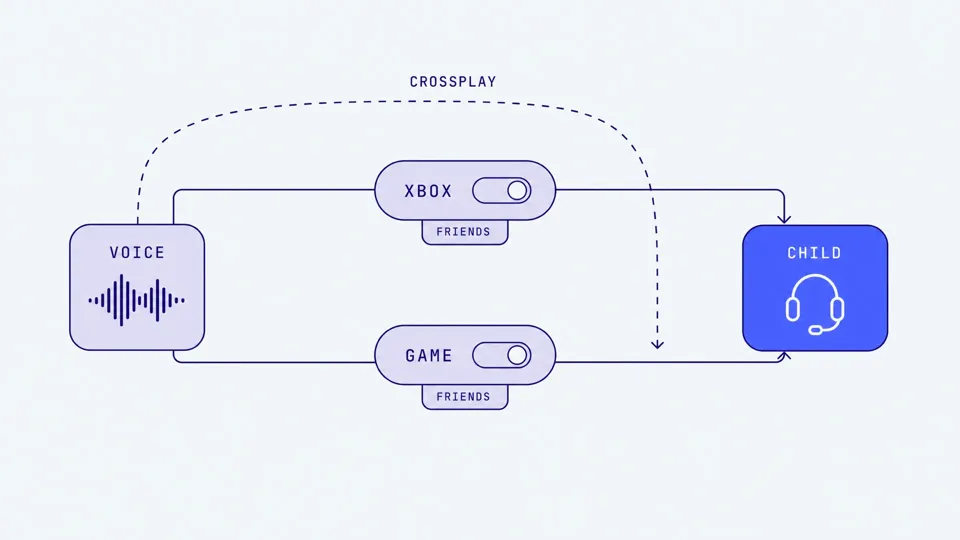
The first is Xbox party chat. This is Microsoft's own voice system. Your child presses a button, joins a party, and talks to whoever is in it. Party chat is platform-level, which means it is the surface Xbox's own parental controls govern most directly.
The second is in-game voice between Xbox players. A lot of games run their own team or proximity voice channels. When everyone in the lobby is on an Xbox, that voice still passes through Xbox's network, so Xbox's communication setting still applies. But the game can add its own controls on top.
The third is in-game crossplay voice. This is the one that catches parents out. When your child plays Fortnite or Call of Duty or Minecraft with players on PlayStation or PC, the voice runs through the game publisher's servers, not Xbox's. Epic Games handles Fortnite voice. Activision handles Call of Duty voice. The game decided who your child can hear, using the game's own account settings, and Xbox is only partly in the loop.
Once you see it as three surfaces instead of one, the rest of this guide makes sense. You are not setting one switch. You are setting a few, in two different places.
The two tools: Xbox Family Settings app and Microsoft Family Safety
Microsoft gives parents two apps, and the names are similar enough that plenty of parents download the wrong one and give up.
The Xbox Family Settings app is the one you want for voice chat. It is a free mobile app for iOS and Android, built specifically for managing children on Xbox. It handles child account setup, screen time on the console, content ratings, multiplayer settings, cross-network play, and the communication settings that decide who your child can talk to. There is no child version of this app, and children cannot log into it with their own account, so you can keep it on your phone without it becoming a negotiation.
Microsoft Family Safety is the broader tool. It manages screen time and content limits across Windows PCs, Xbox, and mobile devices, all in one place. It is genuinely useful, but it is not where the Xbox voice controls live.
Both apps read from the same Microsoft family group. You set up the family group once, add your child's account to it as a child member, and then either app can see that child. For the job in this guide, open the Xbox Family Settings app. If you would rather not use an app at all, every one of these settings also exists directly on the console, and we cover that path in the walkthrough below.
The communication settings that matter
Inside the Xbox Family Settings app, or on the console under your child's privacy settings, the section you want is communication and multiplayer. This is where voice chat actually gets decided.
The most important setting is labeled something close to "others can communicate with voice, text, or invites." It has three options.
Everybody means anyone on Xbox can voice chat with your child. For most children under sixteen, this is more open than parents want.
Block, sometimes shown as "no one," means your child receives no voice or text communications or invites at all. It is the safest option and the bluntest one. It also means your child cannot talk to their actual friends, which is usually why this setting gets quietly switched back off a week later.
Friends is the option most families land on, and it is worth understanding exactly what it does. When communication is set to Friends, your child can only voice chat with people on their own Xbox friends list. Here is the part that reassures parents the most, and it is buried in forum threads rather than official pages: if your child joins a party that has strangers in it, they will only hear and be heard by the friends in that party. Everyone else is muted both ways. Your child is in the room, but the strangers are not in their headset.
That makes the friends list itself the thing that matters. Sit down with your child and go through it. If a name does not match a real person they know, ask about it. The friends list is the gate, and Friends mode is only as safe as that list is honest.
A few other settings sit in the same menu. "Video for communication" controls who your child can video chat with, and Block or Friends is sensible for younger children. "Add friends" decides whether your child can add new friends on their own or needs your approval first. Requiring approval for younger children keeps the friends list under control without you having to audit it constantly.
One more thing worth knowing. Child accounts cannot change their own restrictions. Only the parent, or organizer, account can. So once you set this, it stays set until you change it.
Crossplay: the part most guides get wrong
This is the section that makes the rest of your setup actually hold.
You have set the Xbox communication setting to Friends. Good. That governs Xbox party chat and Xbox-network voice. It does not govern the voice chat inside a crossplay game.
Xbox has a second, separate setting for this, usually labeled "you can communicate outside of Xbox with voice and text." This one decides whether your child can talk to players on other systems, like PlayStation consoles or PCs, at all. There is also a related setting, "you can join cross-network play," which decides whether your child can play crossplay games with off-Xbox players in the first place. Setting the communication-outside-of-Xbox option to Block or Friends closes a real gap.
But here is the two-layer truth. Even with that Xbox setting locked, the crossplay game itself still has its own voice controls, and the game's settings can be more permissive than yours.
Fortnite voice runs on your child's Epic account. Call of Duty voice runs on the Activision account. Minecraft multiplayer ties to the Microsoft account but adds per-server and Realms settings. Each of those is a separate control panel, and Xbox cannot reach inside it.
So the honest setup is two moves, not one. Move one: set the Xbox cross-network communication setting. Move two: open the game publisher's account and set the voice control there too. We walk through the specific games further down.
If you have ever set Xbox parental controls and then found your child still talking to strangers in Fortnite, this is why. The Xbox layer was set. The game layer never was.
Setting it up: a 15-minute walkthrough
Two paths here. Pick whichever is easier for you. The app is faster if your hands are already on your phone. The console path is better if you are sitting with your child.
The app path:
- Download the Xbox Family Settings app from the iOS App Store or Google Play. It is free.
- Sign in with your own Microsoft account, the adult account. If you do not have a family group yet, the app walks you through creating one and adding your child.
- Open your child's profile in the app and find privacy or communication settings.
- Set "others can communicate with voice, text, or invites" to Friends.
- Set "you can communicate outside of Xbox with voice and text" to Friends or Block.
- Set "video for communication" to Friends or Block for younger children.
- Set "add friends" to require your approval if your child is under about thirteen.
- Review the existing friends list with your child. Remove anyone they cannot place.
The console path:
- On your child's Xbox, press the Xbox button, then go to Settings, then Account, then Family settings.
- Choose Manage family members, then select your child.
- Go to Privacy and online safety, then Xbox Network privacy, then View details and customize.
- Open Communication and multiplayer.
- Set the same options as the app path above: communication to Friends, communicate outside of Xbox to Friends or Block, video to Friends or Block, add friends to needs-approval.
- Back out and check Content restrictions while you are here, and set the age level to match your child.
Either way, the last step is the same and it is the one people skip: go set the game-level controls too, using the next section.
The whole thing is genuinely about fifteen minutes. The first-time family group setup is the slow part. Once the group exists, changing settings later takes two minutes.
What you can and cannot see
This is the honest part, and it matters because trust is the whole point.
Xbox parental controls let you decide who your child can talk to. They do not let you hear or read what gets said. There is no parent transcript, no recording feed, no log of conversations. If you came here hoping to review what your child said in a match last night, that feature does not exist on Xbox.
What does exist is voice reporting. Since 2023, any Xbox player, including your child, can capture a 60-second clip of an in-game voice incident and send it to the Xbox Safety Team for review (Xbox Wire, July 2023). It is a reporting tool, built for the moment something goes wrong, not a monitoring tool you can check on a schedule. You also cannot record voice chat off the console yourself.
So the realistic picture is this. Xbox gives you strong controls over who is in the conversation, and a reporting button for when something crosses a line. It does not give you visibility into the conversation itself. That is not a flaw you can configure away. It is how the platform is built.
Knowing that changes what your job actually is. Your job on Xbox is to set the gate well, keep the friends list honest, and have the kind of relationship where your child tells you when something feels off. The controls support that. They do not replace it.
Xbox One compared with Xbox Series X and Series S
Quick reassurance for the families still on an Xbox One, which is a lot of families.
The family settings system is the same. Xbox One, Xbox Series S, and Xbox Series X all use the same Microsoft family group, the same Xbox Family Settings app, and the same communication and multiplayer menu. Every setting in this guide works on all three consoles. The menu names match. The crossplay settings match.
What differs is hardware and the look of the dashboard, not the parental controls. A newer console has a faster interface and a slightly different layout, but you are not missing any safety feature by being on an Xbox One. If your child plays on an older console, follow the exact same steps. Nothing in this guide is Series-X-only.
The game-specific layer: Fortnite, Call of Duty, and Minecraft
This is move two from the crossplay section. Here is where to go for the three games most children on Xbox are actually playing.
Fortnite. Voice chat in Fortnite runs on your child's Epic account, not their Xbox account. Sign in at the Epic Account Portal, find parental controls, and you can set the Epic voice chat permission and scope text chat to friends only or off. Epic also uses what it calls cabined accounts for younger children, which limit social features until a parent approves them. One known snag: if Fortnite's own parental controls are enabled and conflict with what your child expects, voice or text can stop working until a parent adjusts the settings. That is normal. It means the controls are doing their job. Work through it together rather than just switching everything back on.
Call of Duty. Voice in Call of Duty is governed by the Activision account settings. Activision also runs automated voice moderation across its recent titles, using a system called ToxMod for voice and Microsoft's Community Sift for text, confirmed in Activision's November 2025 player safety report. That moderation is useful, but it is enforcement that happens behind the scenes. It is not something you can see or tune as a parent. For your part, set the Activision account communication options, and on Xbox keep the cross-network communication setting tight.
Minecraft. Minecraft ties to your child's Microsoft account, so the Xbox family group already covers a lot of it. The extra layer is multiplayer servers and Realms, which can have their own chat and voice. If your child plays on public servers, that is a separate conversation about which servers and which people.
The pattern across all three is the same. The game has its own account and its own switches. Xbox cannot set them for you. Fifteen minutes on the Xbox layer plus ten minutes on the game layer is the realistic total.
Frequently asked questions
Does Xbox have voice chat?
Yes. Xbox has party chat, which is a platform-level voice system across games, and most multiplayer games add their own in-game voice on top. A child can talk to other Xbox players and, in crossplay games, to players on PlayStation, PC, and Switch. All of it can be controlled, but it runs through two layers: the Xbox account settings and the individual game's settings.
How do I turn off voice chat on Xbox for my child?
Open the Xbox Family Settings app or the console settings, go to your child's communication and multiplayer settings, and set "others can communicate with voice, text, or invites" to Block. For crossplay games, also set "communicate outside of Xbox" to Block, and turn off voice in the game's own account, such as the Epic account for Fortnite. Most families choose Friends instead of Block so real friends still work.
Why does it say "chat is restricted due to your Xbox communication settings"?
That message means the account's communication setting is blocking voice or text. On a child account it usually comes from the Xbox Family Settings app, where "others can communicate with voice, text, or invites" is set to Block or Friends. To fix it for a child account, open the Xbox Family Settings app, or on the console go to Settings, then Account, then Family settings, then Manage family members, select your child, then Privacy and online safety, then Xbox Network privacy, then Communication and multiplayer. Set it to Friends so approved friends still work, or Everybody to remove the restriction. (The shorter Account, then Privacy and online safety, then Xbox privacy path applies to the owner's own account, not a child's.) For crossplay games like Fortnite, also check "You can communicate outside of Xbox with voice and text" and the game's own account settings.
Can I monitor my child's Xbox voice chat?
No. Xbox parental controls let you decide who your child can talk to, but they do not give you a transcript or recording of what is said. Xbox offers a voice reporting tool that captures a 60-second clip to send to its safety team, but that is for reporting incidents, not for parent monitoring. No third-party app can monitor Xbox voice chat either, because Xbox is a closed platform.
Why did Fortnite voice chat stop working after I set Xbox parental controls?
Because Fortnite voice runs on the Epic account, and the Xbox communication setting and the Epic setting can conflict. When you restrict communication on Xbox, Fortnite voice can break for your child's actual friends too. The fix is to set the Xbox cross-network communication setting to Friends rather than Block, then set voice to friends-only inside the Epic Account Portal. That keeps friends working while keeping strangers out.
Does Xbox parental control voice chat work for crossplay games?
Partly. The Xbox cross-network communication setting controls whether your child can talk to players on other platforms, which is real protection. But the crossplay game itself, Fortnite or Call of Duty for example, also has its own voice controls on its own account. Xbox cannot set those. You have to set both layers for crossplay voice to be fully locked down.
What is the difference between the Xbox Family Settings app and Microsoft Family Safety?
The Xbox Family Settings app is built for managing children on Xbox, including the communication and voice settings in this guide. Microsoft Family Safety is the broader tool for screen time and content limits across Windows, Xbox, and mobile devices. Both read from the same Microsoft family group. For voice chat specifically, use the Xbox Family Settings app or the console.
Can my child still talk to strangers on Xbox with parental controls on?
On the Xbox network, no, if you set communication to Friends or Block. On Friends mode, your child only hears people on their own friends list, even inside a party with strangers. The gap is crossplay games, where the game's own voice settings apply. If those are left open, your child can still talk to strangers inside that game, which is why you set the game layer too.
A note for Australian parents
The eSafety Commissioner publishes its own Xbox guidance at esafety.gov.au, including Australian reporting routes if something goes wrong in chat. It is worth bookmarking alongside this guide. The settings themselves are the same in Australia as everywhere else, since they live on the Microsoft account. The difference is local support and reporting, and eSafety is the place to start for that.
Your child plays more than Xbox
Here is the part most Xbox guides skip, and it is the honest one.
Halo does not run on Xbox. Xbox is a closed platform, and no third-party safety app gets inside it. Nintendo is the same. We are not going to pretend otherwise.
But think about a typical day for an eight to sixteen year old gamer. They play on the Xbox, yes. They also have Discord open on the PC they do homework on. They play Fortnite or Minecraft on a laptop sometimes. They are on their phone for the friends they actually talk to most. The Xbox is one surface out of four or five.
Xbox parental controls do a good job on the Xbox. They do nothing for the voice chat happening on the PC and the phone. That is the gap Halo was built for. On Mac and Windows, Halo monitors Discord and other voice apps on that computer. On iPhone and iPad, Halo monitors the voice chat and the text chat in the game on screen. It sends you an alert when it detects grooming, bullying, or threats, not general chat or swearing. Their voice never leaves their device. Only the words are analysed, then discarded. Never stored. You get a summary, not a recording.
The reason this matters is in the numbers. Three in four young gamers experience harassment in online multiplayer games (ADL and Newzoo, 2023). One in three boys aged nine to twelve reported having had an online sexual interaction (Thorn, 2024). Grooming can escalate from first contact to a sexual conversation within a single session. Voice is where a lot of that happens, and voice is the channel with the least parental visibility.
Halo works alongside text-monitoring tools like Bark rather than replacing them. Bark covers texts and social apps. Halo monitors the voice chat and the text chat inside the games, on iPhone, iPad, Mac and Windows. It sends you an alert when it detects grooming, bullying, or threats. If you want to think about the whole picture, our guide to voice chat safety across every platform is the place to start, along with our walkthroughs for Discord parental controls, Fortnite voice chat safety, Roblox voice chat safety, and Minecraft voice chat safety.
Where to start this week
Xbox voice chat parental controls are worth the fifteen minutes, and the job is real but finite. Set the Xbox communication layer to Friends, set the cross-network setting, then open the Epic or Activision account and set the game layer too. Walk the friends list with your child while you are at it. Two layers, one honest friends list, and a conversation. That is the whole job.