Quick answer: Open Steam, go to Settings, then Family, and create a Steam Family with your child added as a Child account. From there you set store access, mature-content filters, chat and community limits, daily playtime caps, and purchase approval. The one thing Steam can't do is monitor the content of voice or text chat.
Steam is where a huge share of PC gaming happens, and if your child plays anything from Fortnite to indie horror games, they probably have an account. The good news is that Steam's parental controls got a serious upgrade with Steam Families, which replaced the old Family View and Family Sharing systems in 2024 and is fully rolled out through 2026.
The bad news is that even a locked-down Steam account leaves one door open: chat. Steam's own controls can turn communication features on or off, but they do not read or filter what actually gets said in voice or text. This guide walks through the full setup, then covers exactly where that gap is and what to do about it.
If you have already set up Screen Time or a router-level time limit, that only controls how long your child plays. It does nothing about who talks to them or what content they can buy. Steam Families is a different and more granular layer, so it's worth doing properly.
Do this first: 5-minute Steam safety checklist
Open Steam on a desktop, go to Settings, then Family, and create or manage your Steam Family.
Add your child as a Child account (not an Adult). This unlocks the per-child controls.
Set content restrictions so mature-rated games are blocked or hidden.
Turn on purchase approval so nothing gets bought without your sign-off.
Set a daily playtime limit, then have a quick chat about voice chat with strangers.
That covers the essentials. The rest of this guide explains why each setting matters and where Steam stops.
How Steam Families works
Steam Families lets you and up to five other household members share game libraries and play at the same time. When you set it up, each person joins with a role: Adult or Child. Adults can manage the family and its settings. Child accounts are the ones that get parental controls applied to them.
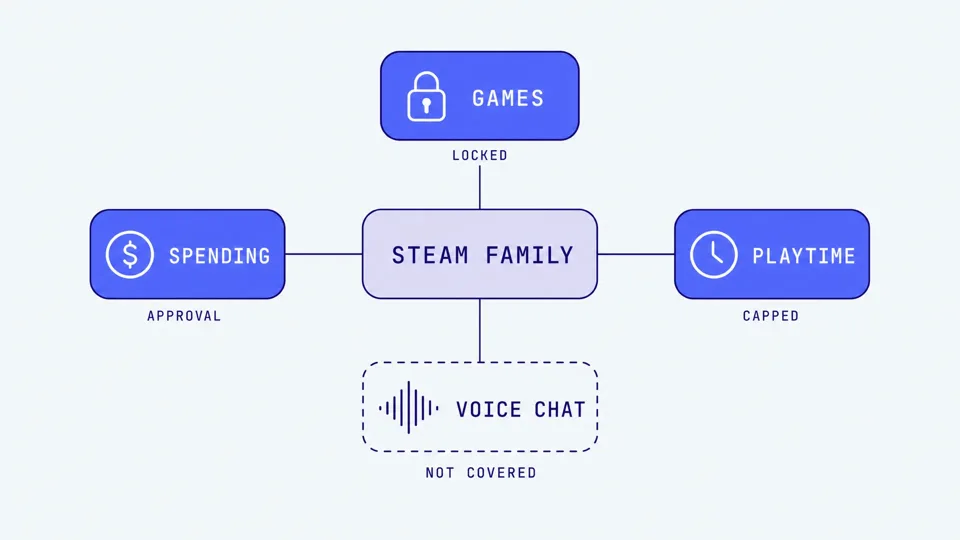
This is the big change from the old system. Family View used to rely on a PIN that a determined child could sometimes guess or find. Under Steam Families, that PIN-bypass is deprecated for family members, so a child cannot simply unlock their own restrictions. Steam also applies age-based defaults automatically using the birth date on the child's account, then lets you fine-tune from there.
A few things worth knowing before you start. Everyone in a family has to be in the same country, so you can't add a relative overseas. Family games generally support offline play, which is handy for travel. And once someone is set as a Child, only an Adult in the family can change that.
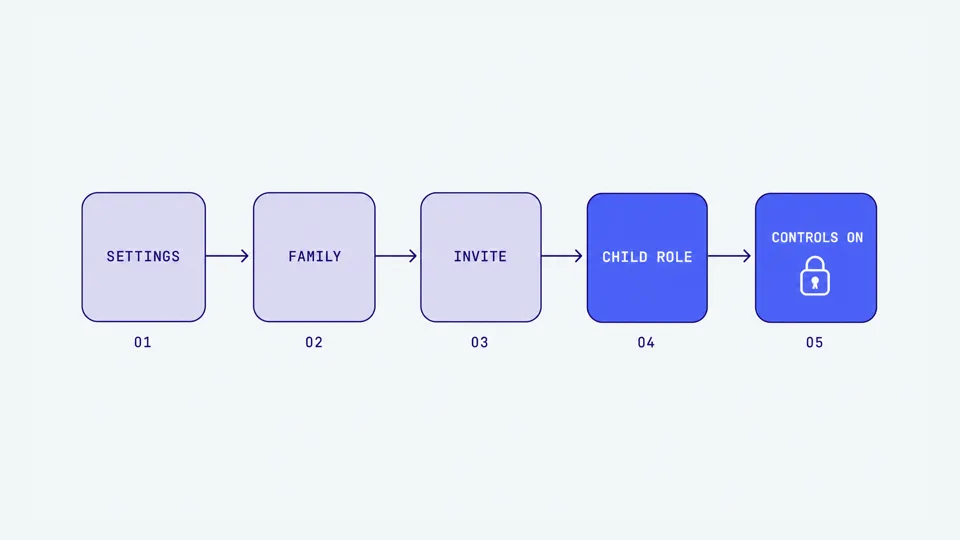
Setting up a child account, step by step
Make sure your child has their own Steam account with an accurate birth date. If the birthday is wrong, the age-based defaults will be wrong too.
On your own (adult) account, open Steam, then Settings, then Family.
Choose to create a family or manage an existing one, then invite your child.
When you invite them, set their role to Child, not Adult. This is the step that turns on parental controls.
Have your child accept the invite from their account.
Back in Family Management, click your child's profile to open their per-child settings.
Restricting games and mature content
Inside a child's profile you decide which parts of Steam they can reach. In Family Management, you deselect the features and content you want to block. This is where you'd keep a mature-rated title like GTA 6 off a younger child's account; if that game is on your radar, our guide to whether GTA 6 is safe for children breaks down the content and risks.
Store access: You can block the child from browsing or accessing the Steam store on their own.
Content ratings: Block games above a certain age rating so mature-rated titles are hidden or unplayable.
Approved library: You can curate which shared family games each child is allowed to launch, rather than opening the whole library.
Friends and community features: You can restrict or turn off access to friends, chat, and community areas (more on the limits of this below).
Setting spending limits
This is one of the strongest parts of Steam Families. A child account cannot buy games or in-game items on its own. Instead, your child adds what they want to a cart and sends a purchase request. You receive it by email or in the Steam mobile app, and you approve and pay from your own account, or decline it.
In practice this sets your child's spending to zero unless you sign off. It removes the classic problem of a child quietly buying a game or a pile of in-game currency, and it means impulse purchases become a conversation instead of a surprise on your card.
Setting playtime limits
In Family settings, click your child's profile.
Scroll to Set playtime limits and toggle it on.
Choose how many hours per day they can play. This limit covers all Steam games combined and applies every day.
Optionally add time-of-day windows so play is only allowed during certain hours (for example, only between 4pm and 8pm on any given day).
Save. If your child wants more time, they can request it, and you can approve extra playtime from your phone.
Steam's own limit is a single daily allowance rather than a separate rule for each weekday, so if you want different caps on weekends versus school nights, you will need a device-level tool like Apple Screen Time or Microsoft Family Safety alongside it. For a broader take on healthy limits and how to talk about them, see our guide to screen time and gaming safety.
The real risks on Steam
Steam's controls handle games, spending, and time well. The risk they don't handle is people. Steam's social features, including messaging, text chat, and voice chat, let your child interact with strangers of any age, and those interactions are where predators and scammers try to make contact.
Voice chat is the sharpest edge. Steam's own parental controls do not monitor or filter in-game voice or text chat, including in-game lobbies, Discord, and Steam friend messages, and in-game voice is often poorly moderated. That means a child can be in an open lobby hearing, and speaking to, adults with no content filtering at all.
Why voice is the gap that matters
The scale of online risk to children is not abstract. Online enticement reports to the NCMEC CyberTipline jumped from about 293,000 in the first half of 2024 to over 518,000 in the first half of 2025, a 77% rise (NCMEC, 2025). The NSPCC recorded 7,062 Sexual Communication with a Child offenses in England and Wales in 2023/24, up 89% since the offense came into force in 2017/18 (NSPCC, 2024). Thorn's research found that around one in three boys aged 9 to 12 reported having had an online sexual interaction (Thorn, 2022).
Voice accelerates this. A Swansea University study of online groomers, presented at the 2016 British Science Festival, found grooming can begin within about 18 minutes of first contact. That study analyzed text chat transcripts, but voice feels more personal than text, so trust builds faster, and none of it leaves a log you can read later. For the full pattern of how grooming unfolds in games, see our guide to grooming warning signs in gaming.
What Steam parental controls can and cannot do
Here is an honest map of where Steam's built-in controls help and where they stop.
Area | Can Steam do it? | Notes |
|---|---|---|
Block mature-rated games | Yes | Per-child content-rating filters in Family Management. |
Limit or block spending | Yes | Child requests, adult approves and pays. Effective zero without sign-off. |
Cap playtime | Yes | A daily hour limit plus optional time-of-day windows, applied every day. |
Turn chat and friends on or off | Yes | You can restrict access to community and messaging features. |
Filter or monitor chat content | No | Steam does not read or filter text chat content for you. |
Monitor voice chat | No | In-game and Steam voice is unmoderated by parental controls. Biggest gap. |
Cover Discord or third-party chat | No | Discord and other third-party apps sit outside Steam entirely. |
The pattern is clear. Steam is good at what your child can play, buy, and how long. It does nothing about what gets said. If your child mainly uses Discord alongside Steam, our Discord parental controls guide covers that side. Xbox parents face a similar split between console controls and unmonitored voice, which we cover in the Xbox voice chat parental controls guide. If your child also games on console, the same split between built-in controls and unmonitored voice shows up on PlayStation too.
Age-specific recommendations
Under 10
Set a Child account with the strictest content rating.
Turn off friends, chat, and community features entirely at this age.
Keep purchase approval on and playtime limits short.
Play in a shared space so you can hear what a game sounds like.
Ages 10 to 12
Child account with mature content blocked and store access restricted.
Consider keeping voice chat off. If it's on for a specific game, know it is unmonitored.
Review their friends list and ask who each person is. Do they know them from school?
Key risk: a stranger in a lobby saying "add me on Discord" to move the conversation somewhere Steam can't touch.
Teens
Content and spending controls stay useful even as you loosen chat.
Have the direct conversation about voice lobbies rather than trying to block everything.
Key risk: open voice lobbies in competitive games where anyone can talk, and pressure to move to private off-platform chat.
For a platform-agnostic overview of how voice risk works across every game your child plays, start with our voice chat safety guide.
What to say to your child about Steam chat
Ages 8 to 10
"On Steam, some games let you talk to people you don't know. We'll keep that off for now."
"If a game ever wants you to type or talk to strangers, come and show me first."
Ages 11 to 13
"If someone in a game asks you to add them on Discord or talk somewhere private, that's a red flag. Why would they need to leave Steam?"
"You won't get in trouble for telling me something felt weird. That's exactly what I want to hear about."
Teens
"Voice lobbies mean adults can be in the same chat as you with no filtering. Most are fine, but the ones that aren't move fast."
"If anyone asks where you live, what school you go to, or wants photos, that's a pattern worth knowing about. Tell me and we'll deal with it together."
Closing the voice gap
Steam Families does the structural work well: games, spending, and time are genuinely under your control. But because Steam doesn't monitor chat content, voice is the layer left uncovered, and it's the layer where the fastest-moving risks live.
Halo is a gaming safety app for iPhone, iPad, Mac and Windows. Halo sends you an alert when it detects grooming, bullying, or threats in your child's game. It monitors the voice chat and the text chat. Not general chat or swearing. Their voice never leaves their device. Only the words are analysed, then discarded. Never stored. You get a summary, not a recording. Halo monitors the voice chat and the text chat, recording nothing. On iOS the supported surface is Roblox; on Mac and Windows it can pick up the Discord and other voice/VoIP chat that so often sits alongside Steam games. So if your child games on a PC, Halo fills the voice-chat gap, the fastest-moving part of what Steam leaves open. It's one layer, not a guarantee, and it's honest about its limits: it does not cover console voice, it doesn't read text or DMs, and there is no Android version yet. Pricing is US$12.99/month or about US$8/month billed annually (US$99.99/year), with a 7-day free trial (AU$19.99/mo or AU$149.99/yr).
The realistic setup for most families is layered. Use Steam Families for content, spending, and playtime. Use conversation and a tool like Halo for the chat side. Neither alone is enough, but together they close most of the gap.
Frequently asked questions
How do I set up parental controls on Steam?
Open Steam, go to Settings, then Family, and create a Steam Family. Invite your child and set their role as a Child account. Steam then applies age-based restrictions automatically. From your adult account you can control store access, mature content, chat and community features, playtime limits, and purchase approvals for each child in the family.
What is the difference between Steam Family View and Steam Families?
Steam Families is the newer system that replaced both Family View and Family Sharing in 2024, and is fully rolled out through 2026. Unlike the old PIN-based Family View, Steam Families uses formal adult and child roles, so children can't unlock restrictions by guessing a PIN. It adds per-child playtime limits, remote purchase approval, and shared libraries for up to six people.
Can I limit how much my child spends on Steam?
Yes. With a Steam Families child account, your child cannot buy games or in-game items on their own. When they want a purchase, they add it to a cart and send a request. You get the request by email or in the Steam mobile app and approve or decline it, paying from your own account. This effectively sets spending to zero without your sign-off.
Does Steam monitor voice or text chat?
No. Steam parental controls can restrict or turn off access to chat and community features, but they do not monitor or filter the content of voice or text chat, including in-game lobbies, Discord, or Steam friend messages. Voice chat inside games is the biggest gap, since it is largely unmoderated and lets your child talk to strangers of any age.
Can I set playtime limits on Steam?
Yes. In your Steam Family settings, click your child's profile, scroll to Set playtime limits, and toggle it on. You can set how many hours per day they can play across all Steam games, and you can add time-of-day windows so play is only allowed during certain hours. The daily limit applies every day rather than being set separately per weekday, and you can approve extra time from your phone when your child requests it.
Is Steam safe for a 12-year-old?
Steam can be made reasonably safe for a 12-year-old with a Steam Families child account, mature-content blocking, spending approval, and playtime limits. The remaining risk is communication. Voice and text chat with strangers is not filtered, so pair Steam's controls with clear conversations and, on Windows, a tool like Halo that sends you an alert when it detects grooming, bullying, or threats if your child plays games with open voice lobbies.
Sources
[Steam Support] "Steam Families User Guide & FAQ." help.steampowered.com
[Steam Support] "Family View." help.steampowered.com
[Steam News] "Introducing Steam Families." store.steampowered.com
[The Whitehatter] "A Parent's Guide to Steam." thewhitehatter.ca
[Internet Matters] "Steam parental controls." internetmatters.org
[NCMEC] "Spike in online crimes against children a wake-up call." 2025. missingkids.org
[NSPCC] "Online grooming crimes against children increase by 89% in six years." 2024. nspcc.org.uk
[Thorn] "Online Grooming: Examining risky encounters amid everyday digital socialization." 2022. thorn.org
[Swansea University / British Science Festival] "Children at risk of grooming in as little as 18 minutes." britishscienceassociation.org
This guide is updated as Steam changes its family features. Last reviewed July 2026.